WARDOGS Performance Checks: Compare Settings in a Changing Battlefield
A large match with vehicles and destruction is a difficult place to judge a graphics change from one moment alone. Establish a baseline, record the scene and compare supported settings deliberately before deciding that a change improved your WARDOGS experience.
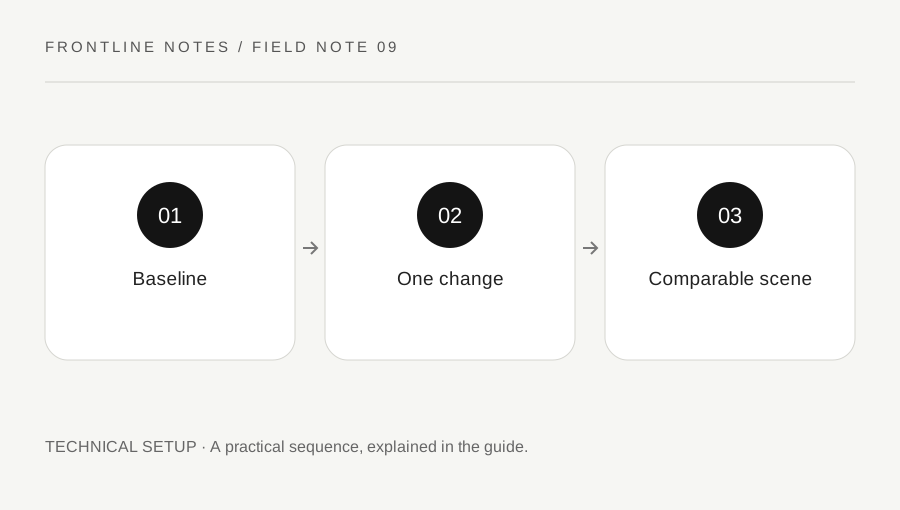
Original explanatory diagram. Examples illustrate a method or decision; they are not claims of personal testing.
Describe the problem before changing settings
The official WARDOGS store page publishes system requirements and describes a large combined-arms environment. Compare your machine with the current requirements first, while remembering that a listed specification does not promise identical performance in every scene. Record the operating system, processor, graphics hardware and relevant display resolution.
Then describe the symptom. Low frame rate, brief stutters, delayed online movement and a disconnect are different observations. A graphics option may affect rendering while doing little for a server connection problem. Avoid labeling every interruption "lag" without noting what actually happened.
For example, write "frame rate drops when a damaged building fills the view" rather than "the whole game is broken." The first description provides a scene and a behavior that can be checked. It does not yet establish the cause, but it gives the next comparison something concrete to examine.
Save the baseline and change one option
Record the original relevant settings before making an adjustment. Include resolution, any supported scaling choice and frame limit if those options are present. These can change the workload enough to make a comparison misleading when forgotten.
Choose one supported setting associated with the observed symptom, then repeat a comparable view or action when normal play permits. Do not install a modified client or a supposed optimization package that alters game memory or disables protections. A reversible in-game adjustment is easier to assess and restore.
Suppose you lower one rendering option but also change resolution and leave a busy match for an empty scene. A smoother result cannot identify which difference mattered. Instead, keep the display setup stable and note the match context. An imperfect but documented comparison is more useful than a dramatic claim based on several simultaneous changes and a completely different battlefield.
Account for scene and match differences
WARDOGS includes destructible surroundings and vehicles, so two visits to a location may present different work for the game. Note whether the view contained nearby effects, moving vehicles or altered geometry. These are comparison conditions, not proof of which system caused a slowdown.
Repeat the observation across more than one ordinary situation when possible. If the improvement appears only once, describe it as a tentative result. Avoid a universal recommendation such as "this setting fixes every PC" based on one device and one encounter.
Keep visibility and control usability in the decision. A setting that increases a displayed performance number but makes important details difficult for you to read may not be the best overall choice. Evaluate the actual task: can you understand the scene, move reliably and maintain acceptable responsiveness? Numbers support that judgment, but do not replace the experience of using the setup in a representative situation.
Keep the useful result or prepare support evidence
If a change helps consistently, record the new value and the conditions in which it helped. If it does not, restore the baseline before testing another option. This prevents a long troubleshooting session from ending with an unknown mixture of changes.
For a persistent issue, prepare a concise support description with the machine information, current game version, symptom, approximate scene and the comparisons already tried. Use the official support route linked by Team17 and follow its current instructions for any requested files. Inspect attachments for personal information before sharing them publicly.
Do not claim a hardware fault, account problem or required upgrade solely from a few slow moments. The goal is to narrow the problem while keeping the setup reviewable. A documented baseline also makes future updates easier to assess because you can compare the same kind of scene instead of trying to remember whether the game felt smoother several weeks earlier.
A practical checklist
Choices are saved in this browser. Reset them here or clear this site’s browser storage.
Questions that come up
Does lowering every setting identify the cause?
No. It changes many variables at once. It may be a quick experiment, but a controlled comparison provides clearer evidence.
Does a graphics option fix disconnects?
Not necessarily. Distinguish rendering symptoms from online connection failures before choosing a test.
Should I use unofficial optimization executables?
Use supported settings and official troubleshooting. Avoid tools that modify the client or interfere with game protections.
References & scope
Background references checked on 18 October 2026. Worked examples and diagrams are original teaching material.