WARDOGS Launch and Connection Problems: Find the Stage That Fails
A failure before the main menu is different from a refusal by one server or a disconnect after entering a match. Identify the failing stage and preserve the exact message before changing your setup or contacting official support.
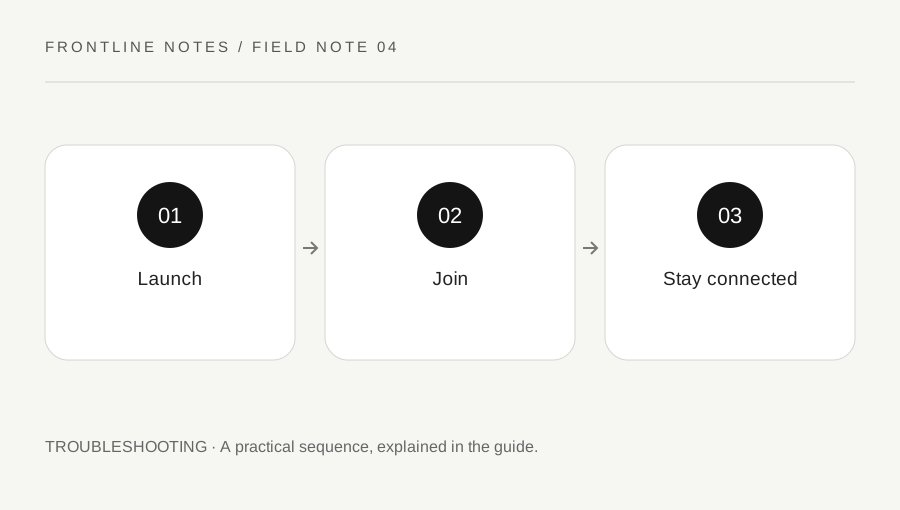
Original explanatory diagram. Examples illustrate a method or decision; they are not claims of personal testing.
Identify the last successful stage
Begin with the normal Steam launch route and note what works. Does the client start? Does the menu appear? Can the server browser load? Does the problem occur on joining a particular server, or only after playing for a while? These observations narrow the question without assuming a cause.
Write down the exact message rather than paraphrasing it from memory. Include when it appeared, the current version if visible and whether the failure repeats after a normal restart. A screenshot can help, but review it for private account information before sending it through the appropriate support process.
For example, "menu opens, one named server refuses the join" is more specific than "WARDOGS does not work." It also prevents troubleshooting a whole installation when the evidence concerns one destination. If multiple stages fail, describe each separately instead of merging them into a single imagined explanation.
Use supported checks in a clear order
Check official announcements for a known interruption or update before making extensive local changes. Confirm that Steam has finished the current update and that your machine meets the presently listed requirements. Use the official support instructions relevant to the actual symptom.
Change one thing at a time and keep a note of the result. A normal restart, a supported installation check or a current documented configuration step is easier to evaluate than a collection of unrelated changes copied from strangers. Do not delete arbitrary folders or disable broad security protections to imitate a supposed fix.
WARDOGS uses anti-cheat, and BULKHEAD explicitly prohibits tampering and interference with it. If the client reports a protection-related problem, follow the current official guidance or ask support. A tool that bypasses the message may create a different violation rather than repairing the original issue. Preserve the message so support can distinguish what the client actually reported.
Separate server scope from local assumptions
When normal play permits a comparison, note whether the same failure occurs on another suitable server. A difference can help describe scope, but it does not prove the exact technical cause. Server rules, access decisions, version state and connection conditions can differ.
If the message describes a community restriction, use the operator's documented process. If it describes developer enforcement, read the current BULKHEAD policy for the relevant route. Do not repeatedly attempt access through alternate identities or modified software.
For a disconnect during play, note the approximate time and what was happening before the interruption. Include whether the application closed, returned to a menu or remained open with an error. Those outcomes may require different investigation. Avoid inventing a network diagnosis from one event, and do not promise that changing a router setting will solve every online failure. The useful contribution is a reliable account of the failure and its boundaries.
Send a concise, reproducible support request
A good request includes the failing stage, exact wording, version, relevant hardware and the supported checks already performed. Add the server identity and approximate time when the issue is tied to a match. Keep the sequence short enough that another person can follow it.
State expected and observed behavior separately. "Expected to join the selected server; returned to the browser with this message" is clearer than a broad complaint. If the issue is intermittent, say so and give the conditions under which it has happened; do not claim perfect reproducibility when it occurred once.
Use the official contact route and follow current instructions for requested diagnostics. Never include passwords or authentication codes in a ticket. Retain a copy of the relevant case number and avoid repeatedly submitting the same unresolved description without new information. A structured report cannot guarantee a fix, but it gives support a meaningful starting point and lets you evaluate later changes against the original symptom.
A practical checklist
Choices are saved in this browser. Reset them here or clear this site’s browser storage.
Questions that come up
Does failure on one server prove my installation is damaged?
No. Establish the scope and read the message before deciding which local or server-side issue to investigate.
Should I bypass anti-cheat to test a connection?
No. Use current official troubleshooting and the appropriate support route without interfering with protections.
What if I cannot reproduce the failure?
Describe it as intermittent, give the observed conditions and avoid claiming a reliable reproduction you have not established.
References & scope
Background references checked on 18 October 2026. Worked examples and diagrams are original teaching material.